

Claude chat, Claude Desktop, and Claude Code are related but different. Claude Desktop is one app with three tabs: Chat, Cowork, and Code. Chat is for conversation; opening it does not grant access to your local working folder. The Code tab is Claude Code with direct access to the local files you choose; a separate terminal-based Claude Code also exists but is optional. Do not assume the Chat tab gives Claude Code local access.
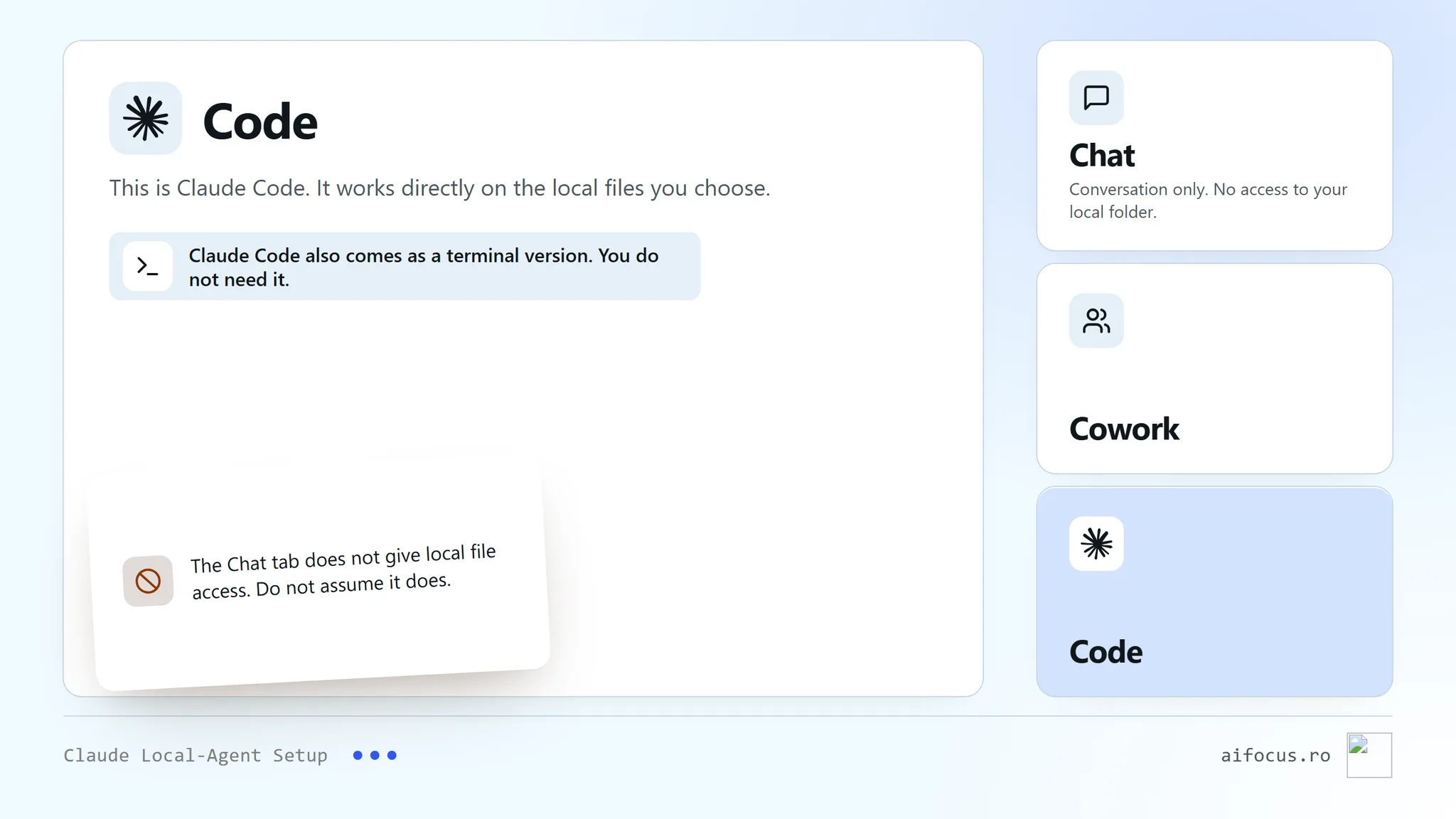
1. Choose the local-agent route deliberately
Download Claude Desktop from Anthropic's official download page for your operating system, install it, and launch it from the Applications folder (macOS), the Start menu (Windows), or your application launcher (Linux). Sign in with your Anthropic account.
Click the Code tab. If it asks you to upgrade, your account does not currently have Claude Code access; check the subscription requirement in the next section. Choose Local, click Select folder, and select only the practice folder for this lesson.
On Windows, Git must be installed for local Code sessions to work; most Macs already include it. Confirm this and any other current requirement on the official page before you start.
A separate terminal-based Claude Code also exists, for use from a supported development environment. It is optional: the desktop app's Code tab does not require a terminal. If the machine or account does not qualify for Claude Code, do not force an installation. Arrange a supported alternative with the workshop organiser. Ordinary chat alone does not meet a local-agent requirement.
2. Account and usage
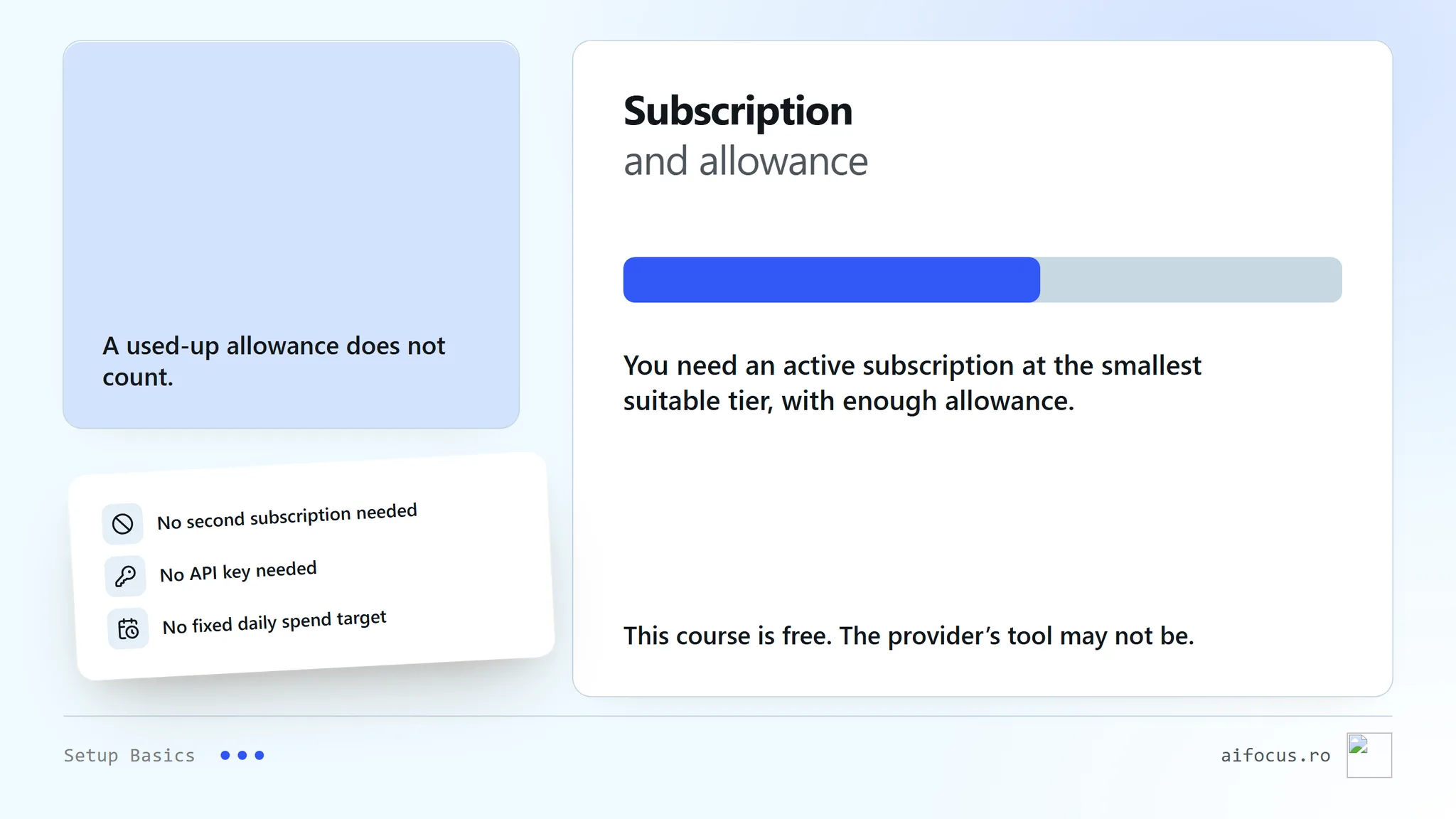
For individual use, Anthropic documents Claude Code access through an active Pro or Max subscription, while Claude Desktop chat itself is available on Free and paid plans. Usage is shared between Claude and Claude Code for those subscriptions. An API key set in the environment can use API billing instead of the subscription route. Start by checking the account screen and your current usage. Confirm the required subscription and enough remaining allowance before the workshop. The course is free, but Claude Code eligibility is not promised by that fact. This course does not ask you to buy a second subscription, set a daily spending target, or use an API key.
3. Give the smallest file scope
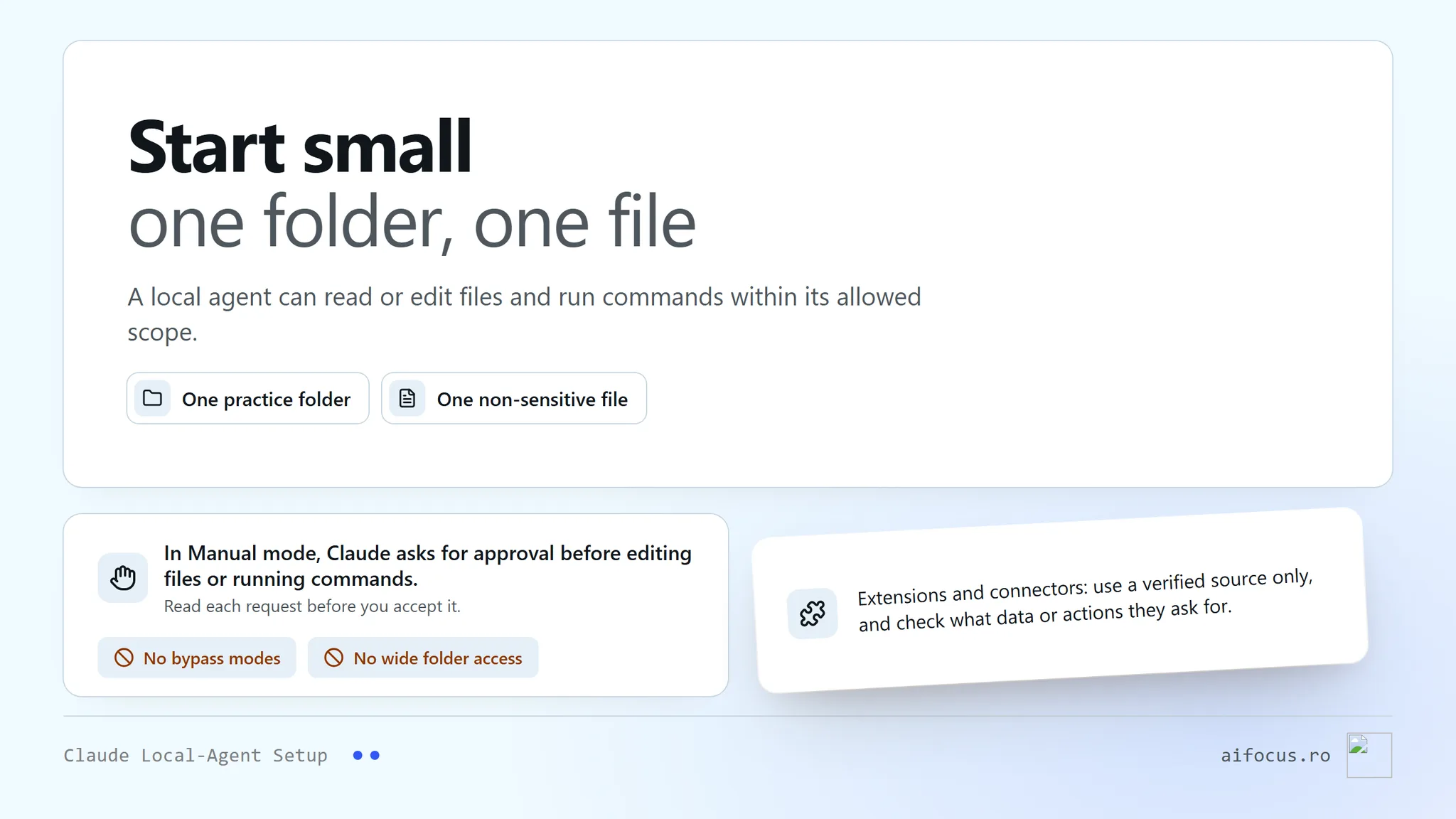
A local agent is powerful because it can read, edit, or run work in the scope you give it. Start in one practice folder with one non-sensitive file. Read the permission request before accepting it. Do not use bypass modes or broad directory access just to make a first exercise faster. Extensions and connectors deserve the same care: use a verified source and check what data or actions they request.
4. Readiness check
Put one disposable text file with a short sentence in the practice folder. Set the permission mode next to the send button to Manual, so Claude asks before editing files or running commands. With that folder selected in the Code tab, paste:
Prompt
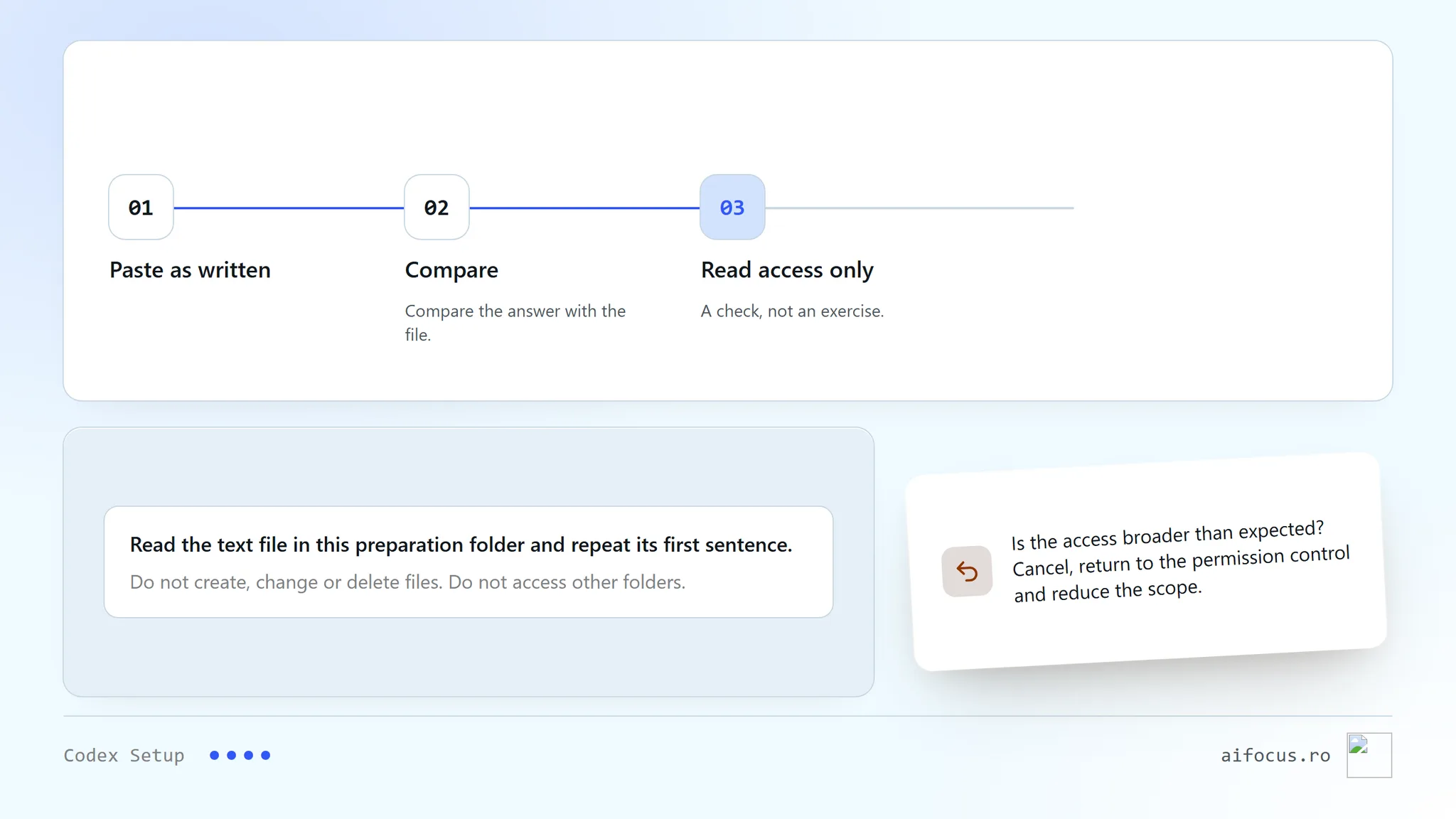
Read the text file in this preparation folder and repeat its first sentence.

Do not create, change or delete files. Do not access other folders.
Compare the answer with the file. This confirms only reading access. If you do not understand a permission or a command, stop and ask for an explanation before approval. A successful answer is evidence only for that small task; it is not proof that the full workshop setup will work.
Troubleshooting
If sign-in fails, the application reports an unsupported system, or the allowance is exhausted, consult the current official account or documentation page. Do not paste an API key into a chat, document, or shared screen. Keep secrets out of the practice folder.
Official sources: Claude Code desktop quickstart; Claude Code getting started; Claude Code subscription use; Claude Code CLI usage.
Written: 2026-09-09
Last verified: 2026-09-09. Desktop setup steps rechecked: 2026-09-12.
End of the course
That was chapter 3 of 3
The outline stays open: come back to any chapter whenever you need it.