

Complete this free, self-paced preparation before any AI Focus workshop. Have the required equipment, account, app, subscription, remaining usage allowance and access ready before you arrive.
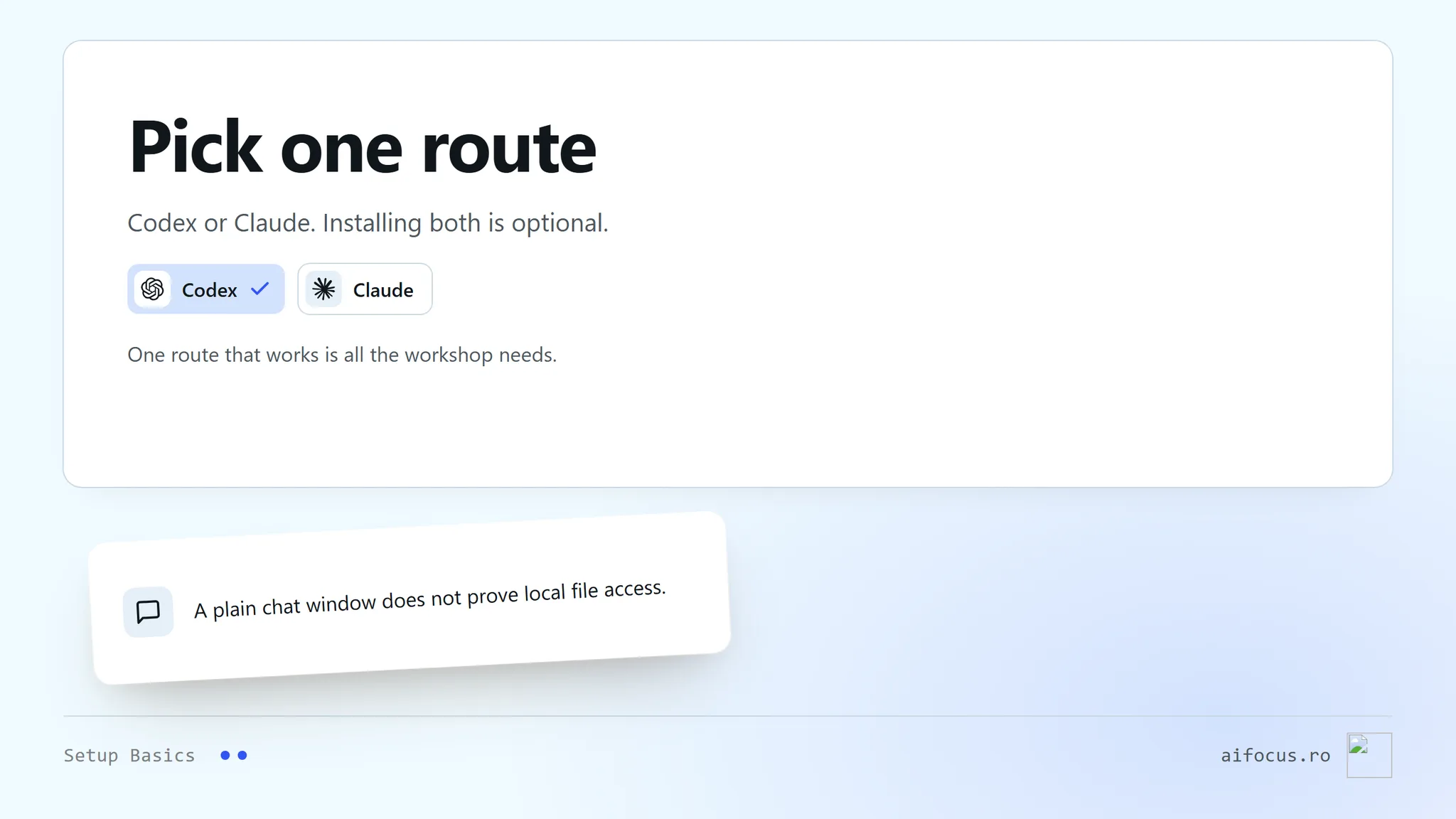
You need one supported working route for your workshop: Codex or Claude. Installing both is optional.
1. Check the workshop requirements
Read the workshop's requirements and choose one of its supported local-agent routes. Ordinary chat alone does not confirm local file access. Use the matching Codex or Claude setup chapter to prepare your chosen route.
2. Prepare your equipment
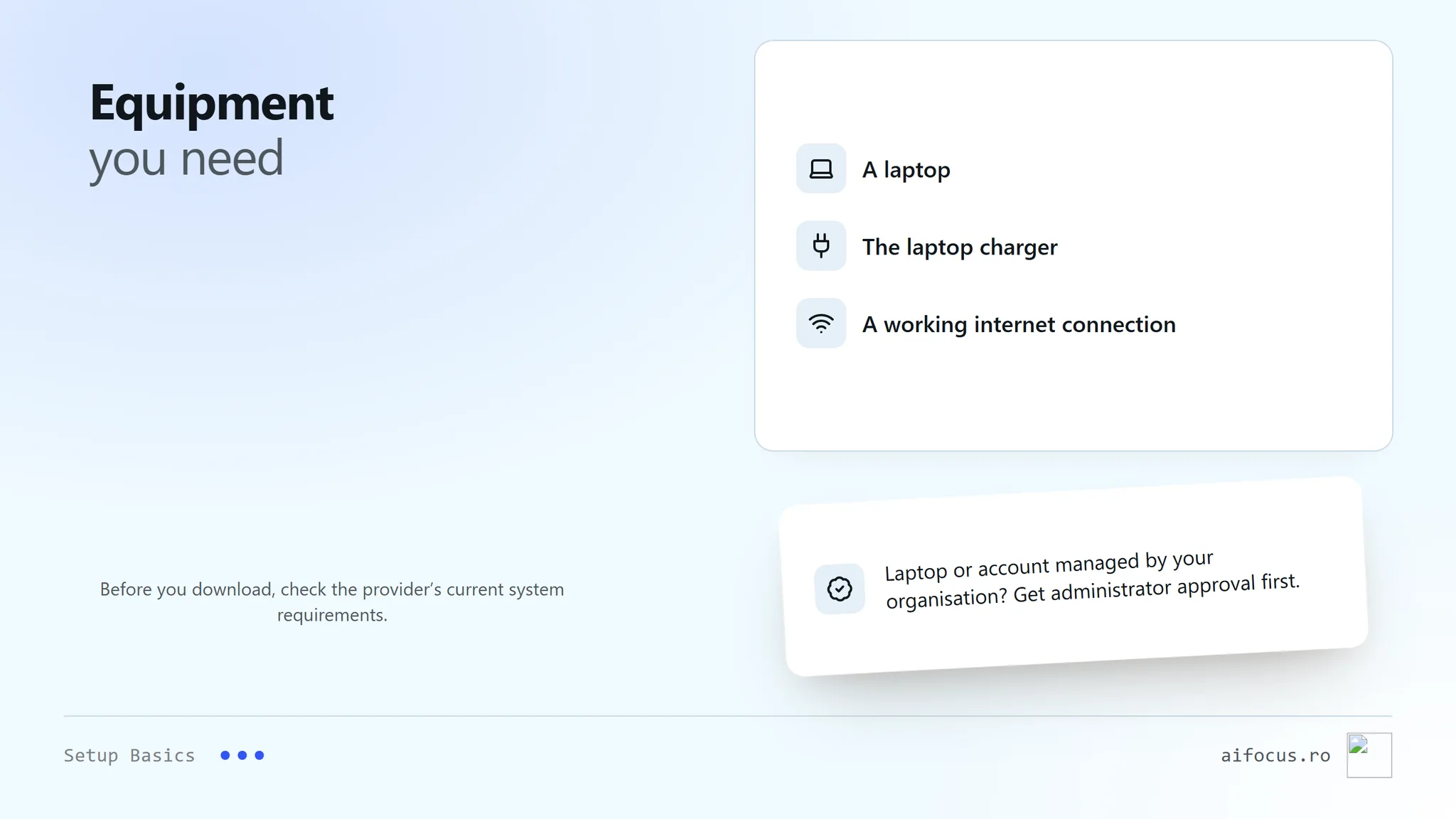
Have a laptop, its charger and a working internet connection. Check the provider's current system requirements before downloading anything. If your device or account is managed by your organisation, obtain the required administrator or workspace approval before the workshop.
3. Install and sign in
Use the provider's official download or setup page. Open the required app and sign in with the account you will use during the workshop. If your device or account is unsupported, arrange a supported alternative with the organiser before attending. Do not bypass a restriction.
4. Check your subscription and allowance
The preparation course is free. Provider access may cost money. For the tool you will use in a workshop, have an active subscription at the smallest suitable tier and enough remaining usage allowance. An exhausted allowance does not meet the workshop requirement.
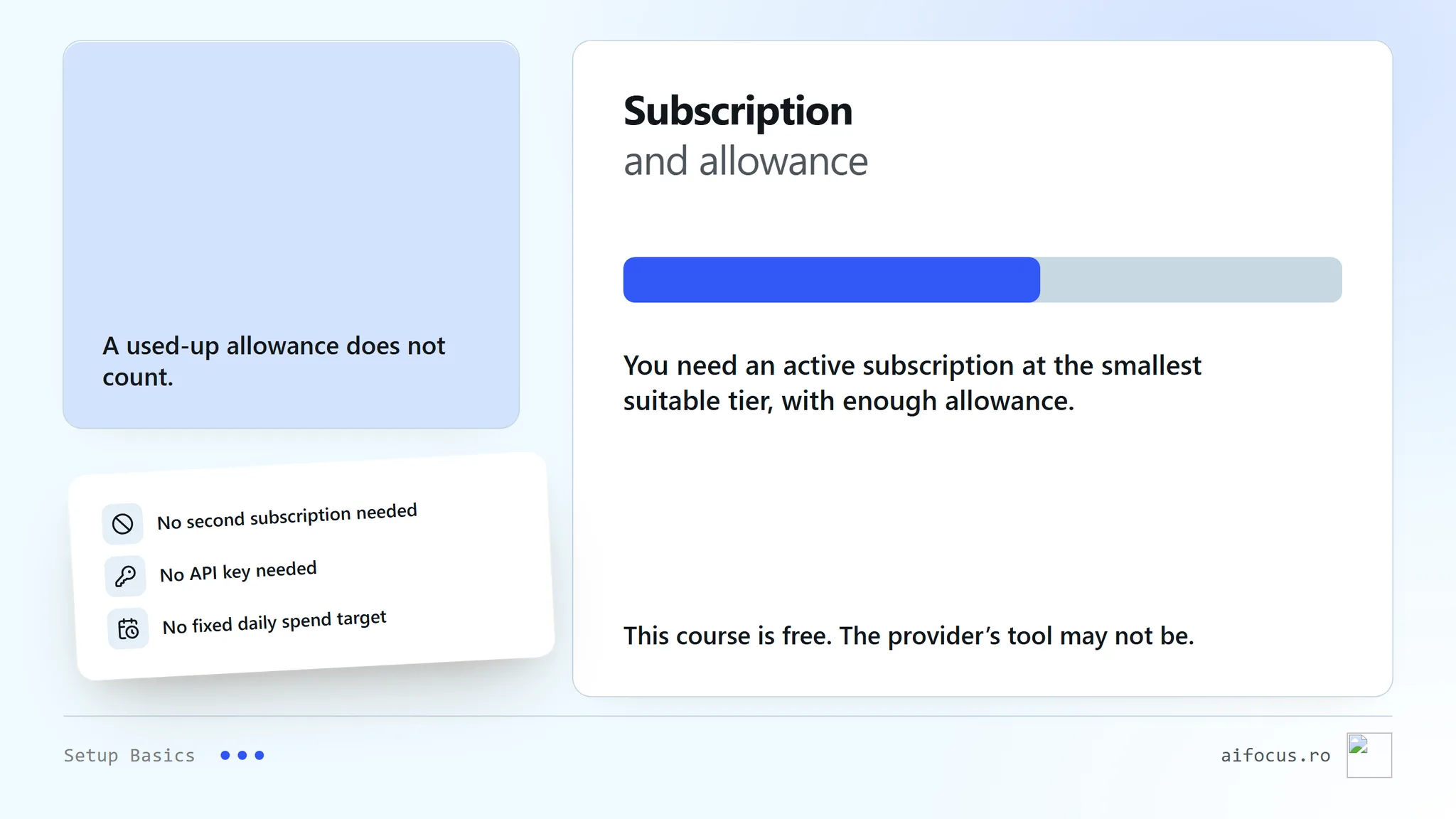
Check access, usage and reset information in your own account. You do not need a second subscription for a tool you will not use. This setup does not require an API key or a fixed daily spending target.
5. Prepare file access
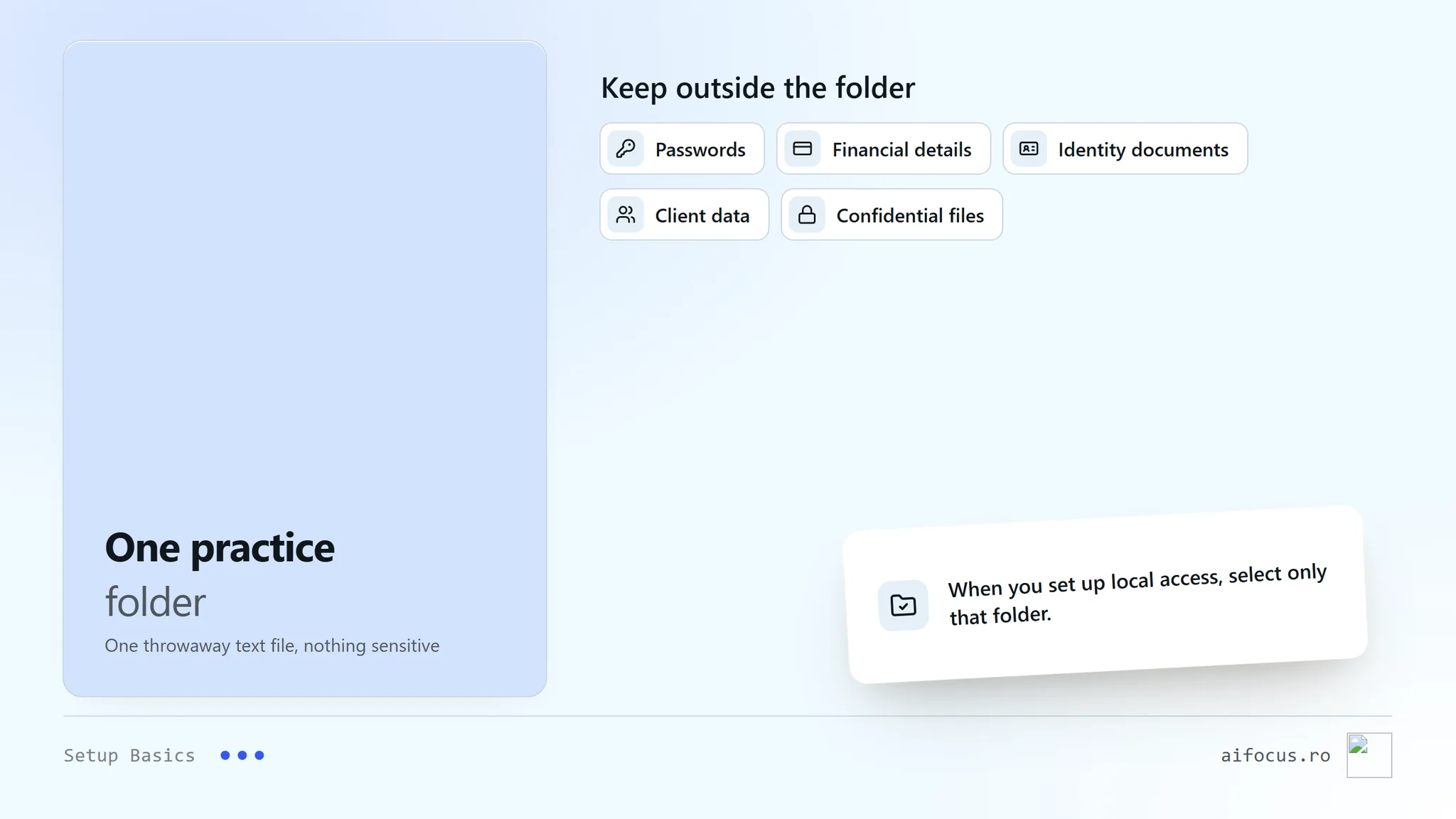
Create one small practice folder with a disposable, non-sensitive text file. Select only that folder when configuring local access. Keep passwords, financial details, identity documents, client data and confidential files outside it.
Read permission requests before accepting them. If the app asks for broader access than the workshop needs, stop and resolve that before attending.
6. Confirm readiness
Open your chosen app and check that you are signed in, have the required access and have remaining allowance. Use the brief read-only check in its setup chapter to confirm access to the practice file. No editing exercise is needed here.
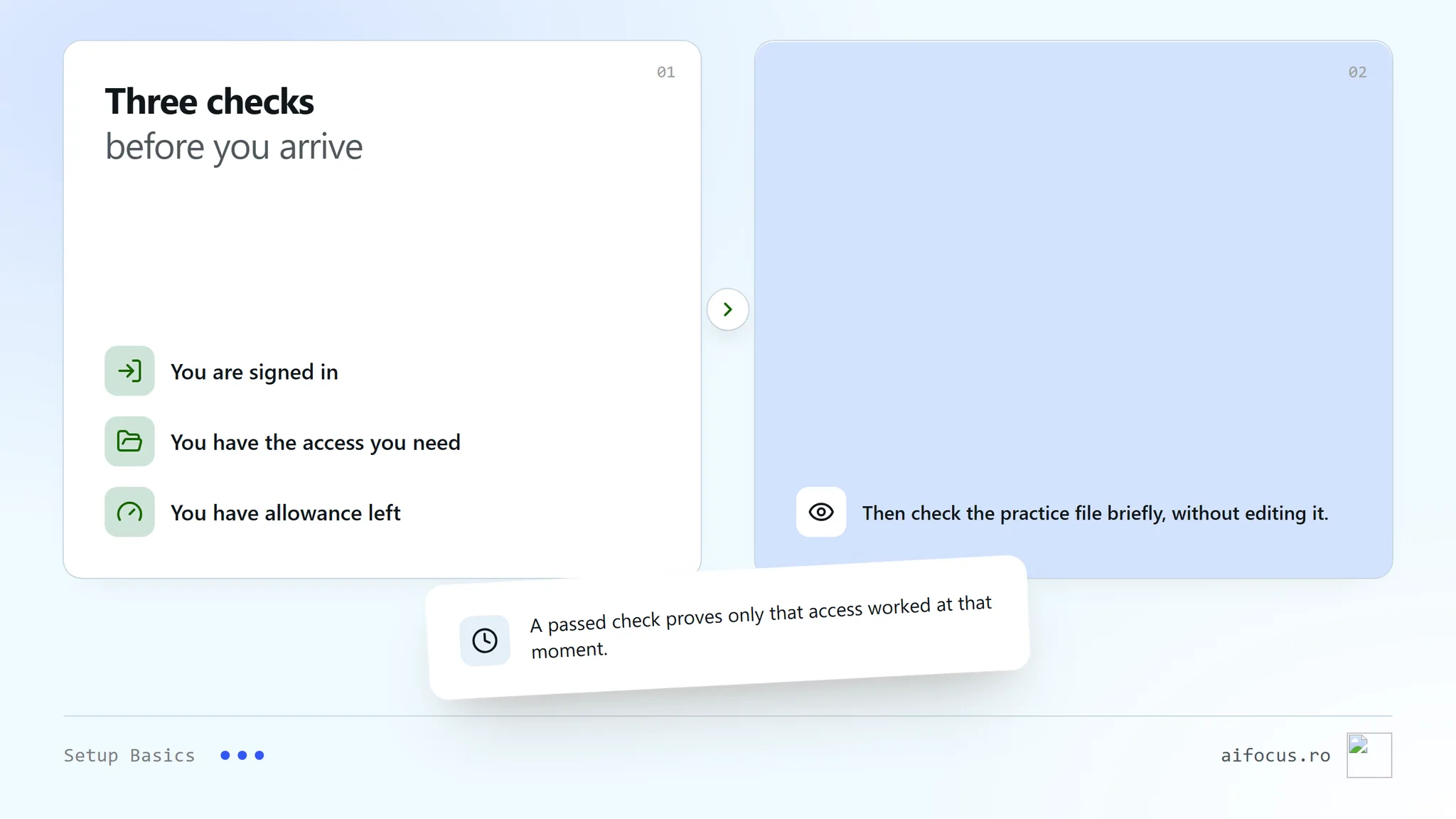
If sign-in, installation, permission or usage problems remain, consult the provider's current help page or contact the organiser before the workshop. A successful file check confirms only that access at that moment.
Written: 2026-09-09
Last verified: 2026-09-09 for the original general setup guidance.