

Codex is a coding agent. It can work in a project workspace and use tools when the selected surface and permissions allow it. That is different from asking a normal chat question. Begin with a small folder containing practice material, not a whole personal drive or a production system.
1. Access and installation
For a first desktop setup:
- Open OpenAI's official ChatGPT desktop download page and choose your operating system.
- Install the downloaded app, open it, and sign in with your ChatGPT account.
- In the app, choose Codex from the top-left menu, then select or create the practice folder for this lesson.
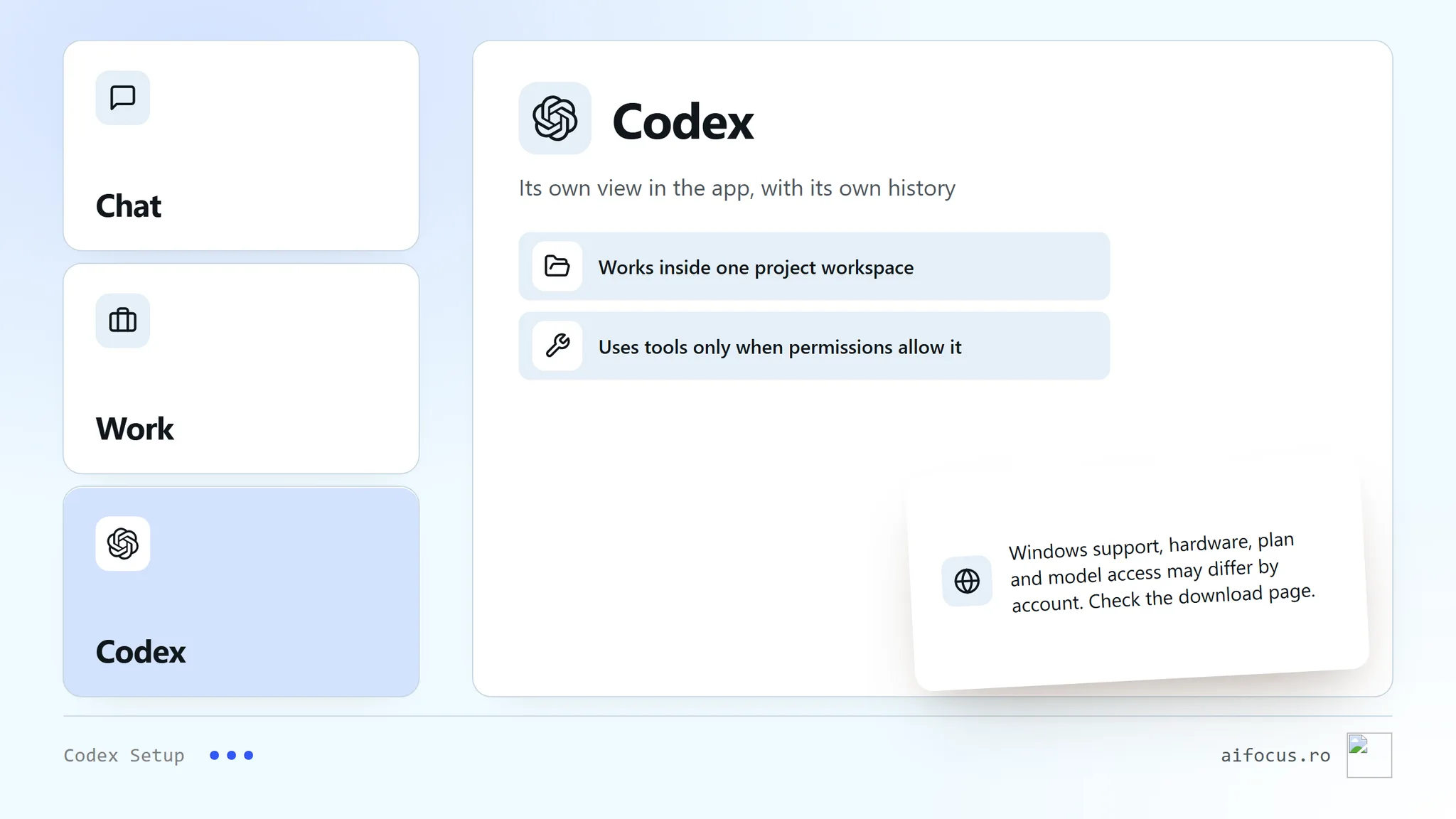
OpenAI documents Codex as a separate view with its own history, apart from Chat and Work. Windows availability, hardware requirements, plan and model access can vary by account; confirm the current download page and your signed-in account before installing.
2. Start inside one workspace
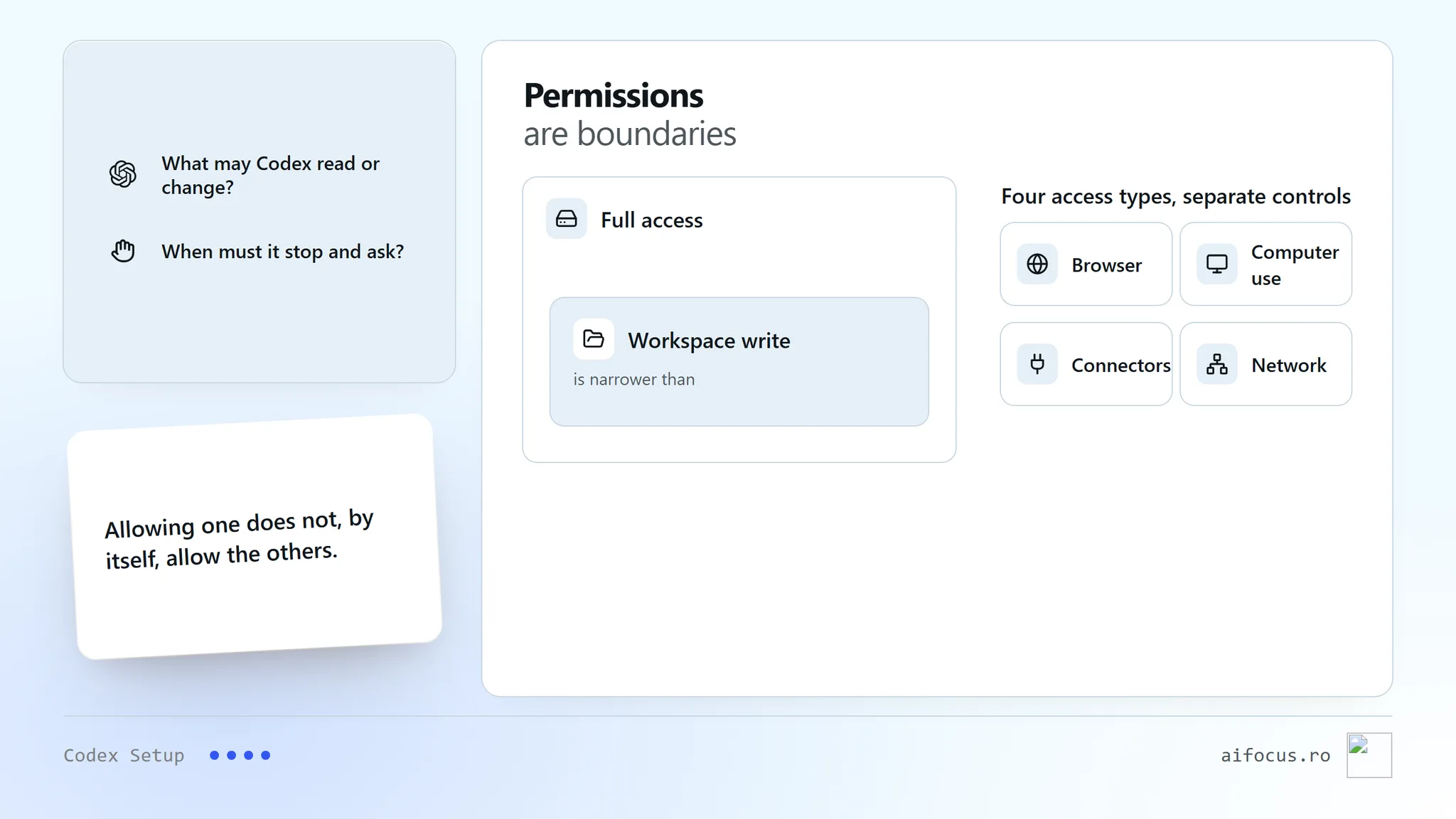
Create or select one practice folder. A workspace is the folder boundary for this task. Put in one harmless text file containing a short sentence. Keep it for the read-only access check below.
3. Usage without a spending rule
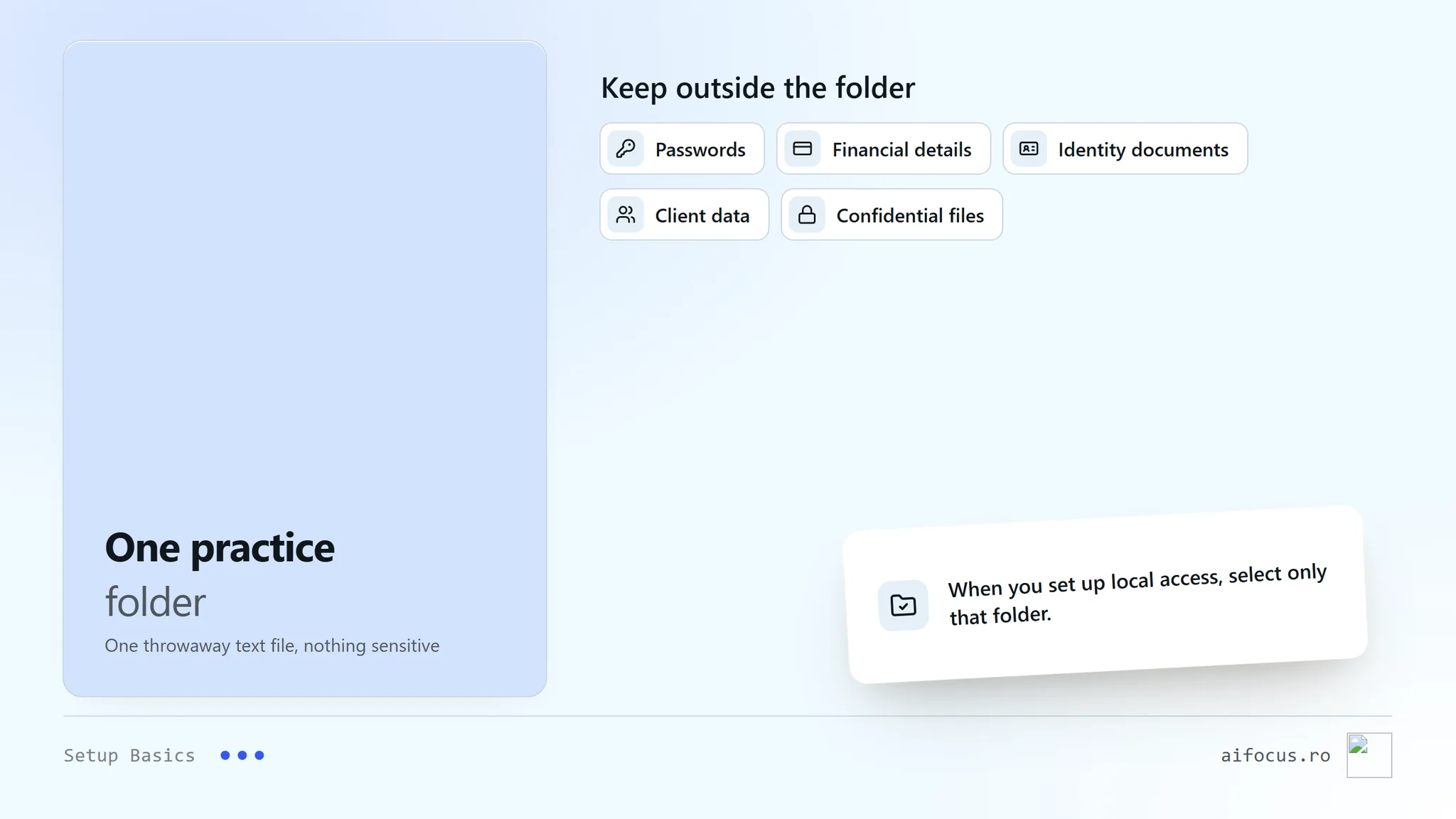
Codex is documented as included with ChatGPT Free and Go as well as paid plans, but limits vary by plan. Its allowance can be shared with eligible Work and other agentic features, and consumption varies with model, task size, context, reasoning, speed, and tools. Check the in-product usage view or limit notice for your own allowance and reset time. Before a workshop, confirm the required subscription and enough remaining allowance. Do not buy a higher tier merely because it exists, and do not set a fixed daily spend target. The free course does not promise unlimited or universal free Codex use.
4. Permissions are boundaries
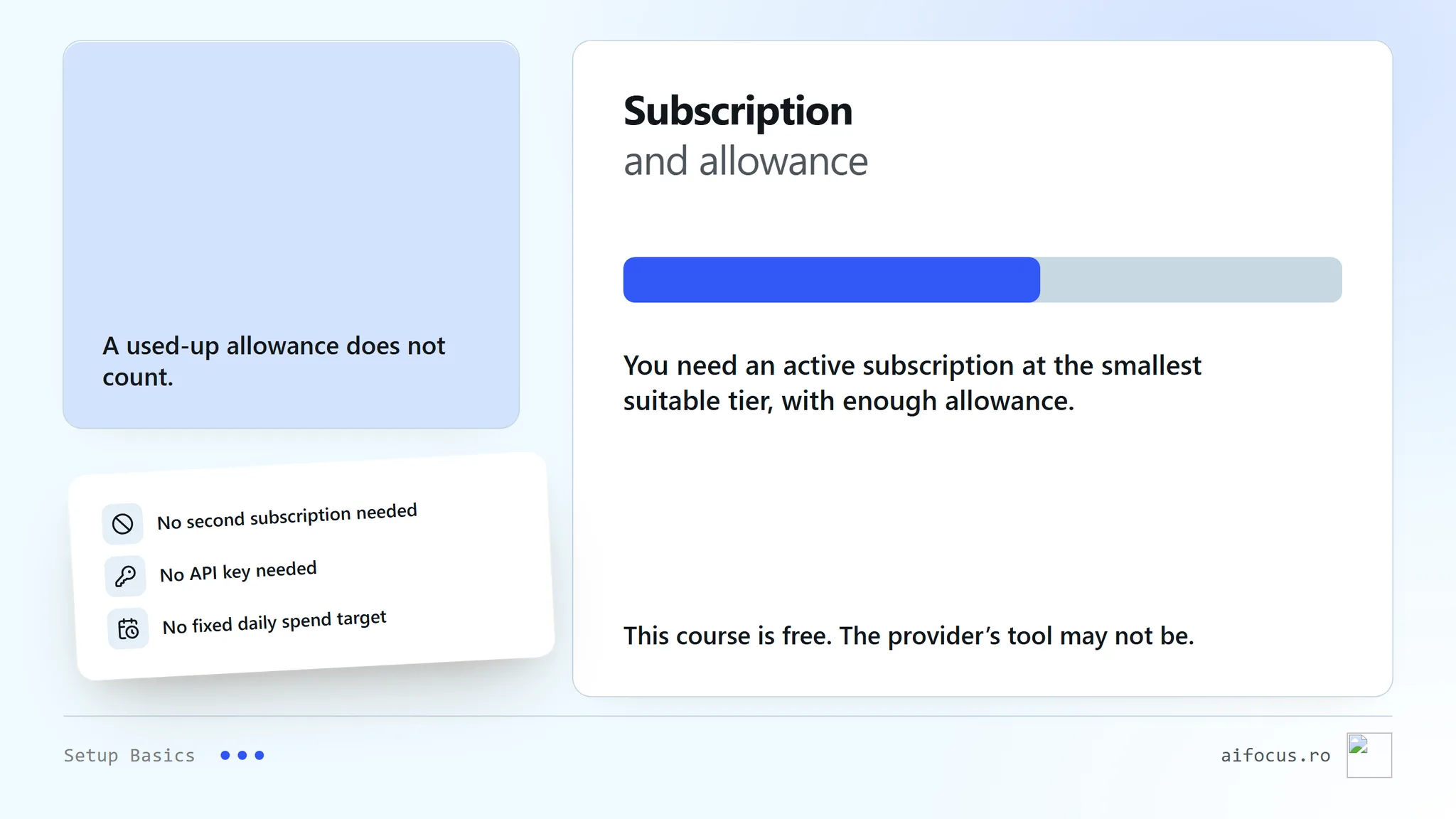
Permissions answer two separate questions: what Codex may read or change, and when it must stop for approval. A workspace-write setting is narrower than full access. Start with the project boundary and approval requests. Do not enable full access to solve a minor inconvenience. Browser, computer-use, connector, and network access have their own controls; granting one does not automatically grant the others.
5. Readiness check and recovery
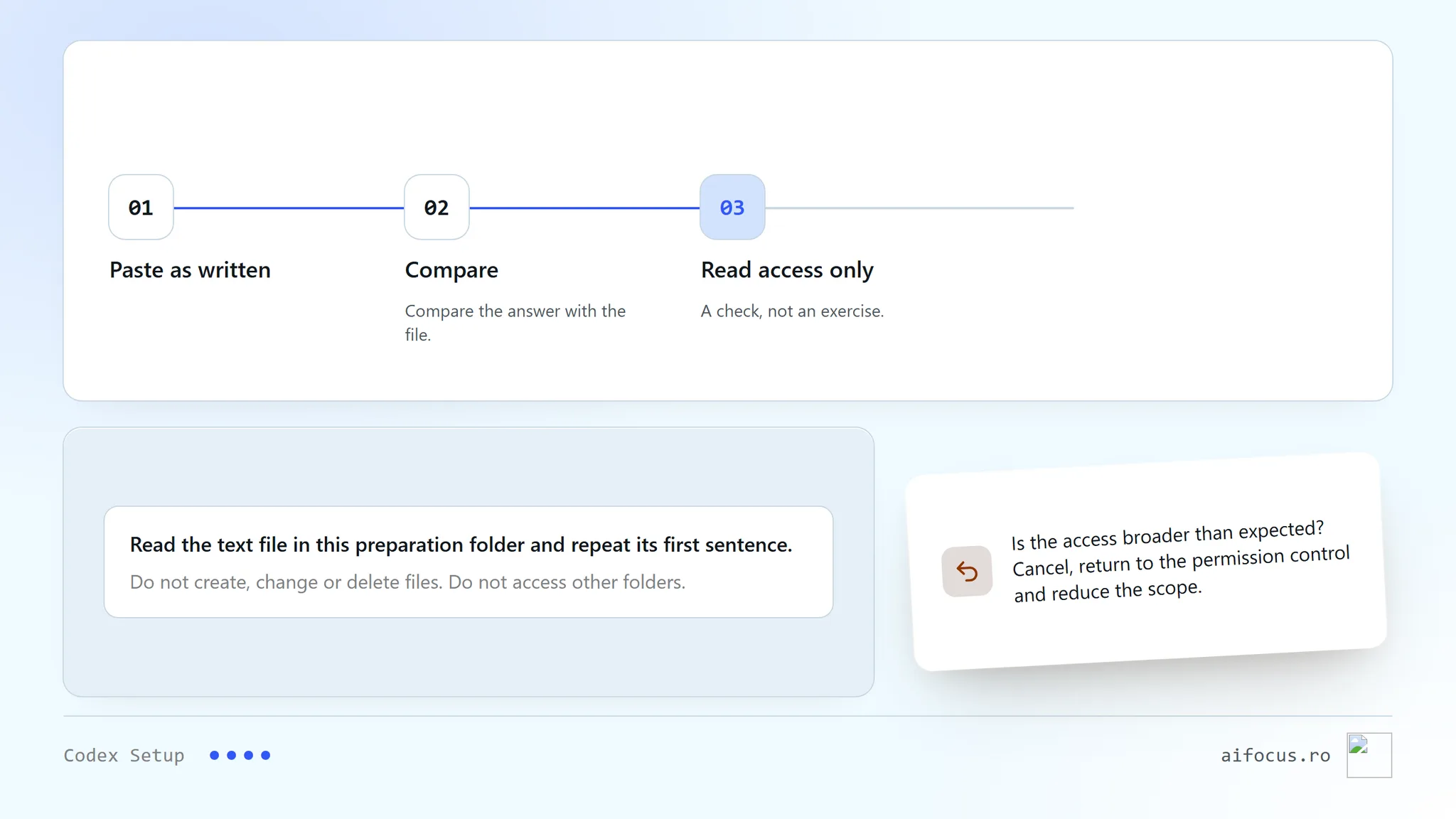
In the app, with the practice folder selected, paste this request:
Prompt
Read the text file in this preparation folder and repeat its first sentence.

Do not create, change or delete files. Do not access other folders.
Compare the answer with the file. This checks reading access only; it is not a workshop exercise. If the application asks for broader access than expected, cancel, return to the permission control, and reduce the scope.
Official sources: OpenAI Docs: Sandbox; OpenAI Docs: pricing and usage; OpenAI Help: Codex with a ChatGPT plan.
Written: 2026-09-09
Last verified: 2026-09-09. English source links rechecked: 2026-09-12. Windows availability, plan and model access can vary by account; confirm on the official download page.